
If you have not yet set up any Training Groups, go to Step 1 of the E-Learning Setup Guide then return back here.
Open ‘E-Learning’.
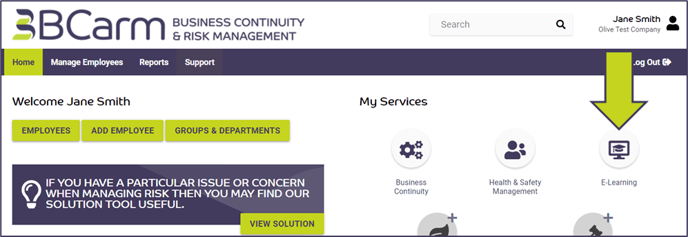
This will open the E-Learning platform in a new tab.
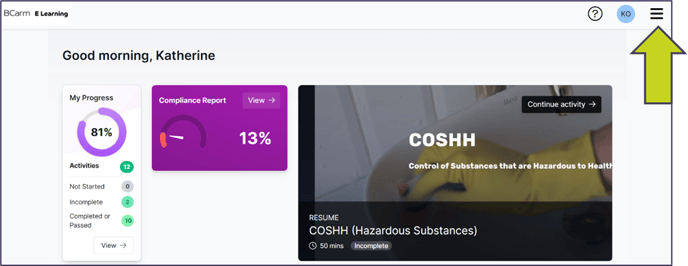
Click on the three horizontal lines in the top-right corner to access the menu.
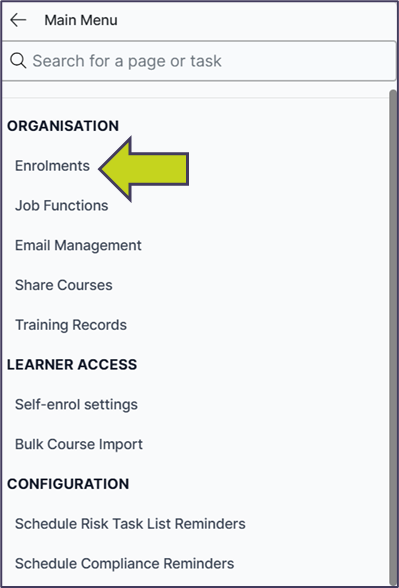
Click on ‘Organisation’ then ’Enrolments’ .
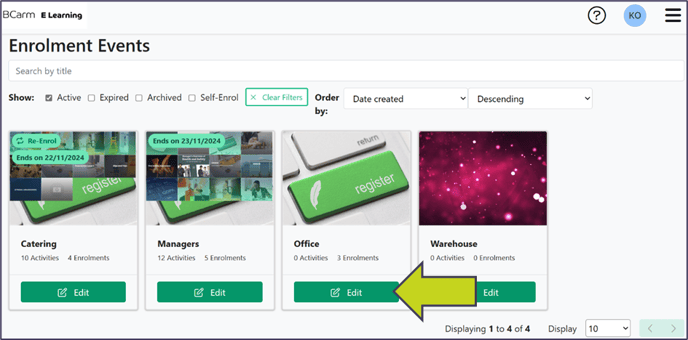
The Training Groups you set up in BCarm will appear here as ‘Enrolment Events’.
Click ‘Edit’ on an Enrolment Event.
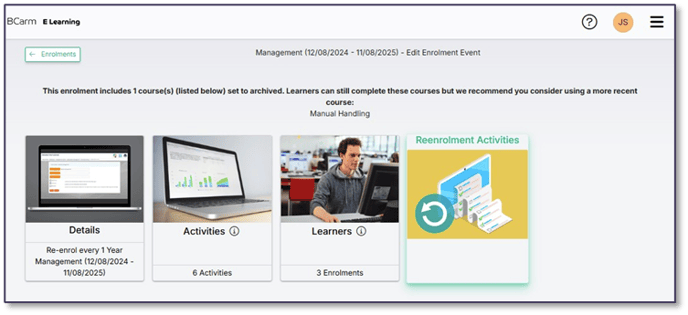
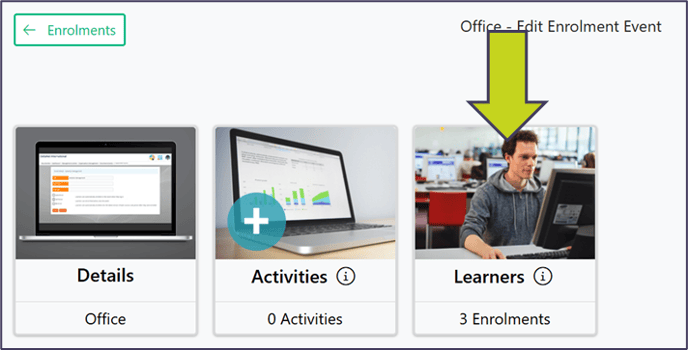
You will see the following options:
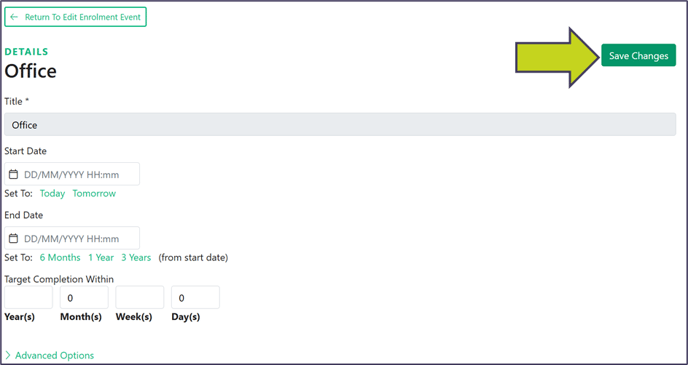
‘Details’ – specify up Start/Target dates for training, as well as reenrolment options.
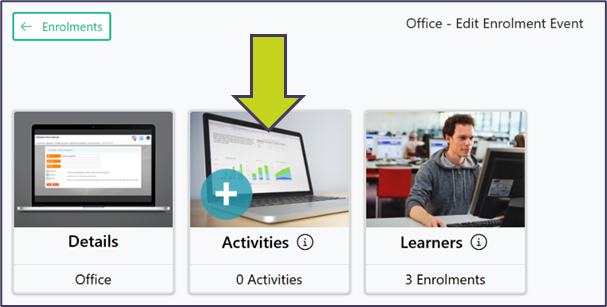
‘Activities’ – what courses are included
‘Learners’ – a chance to review who is in this Training Group.
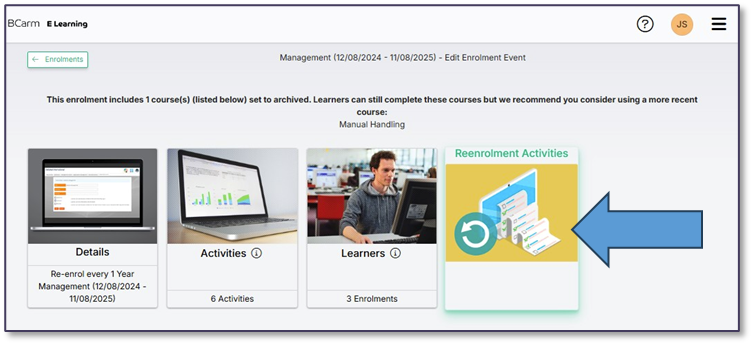
‘Re-Enrolment Activites’ – this appears if you select 'Re-enrol Learners' on the 'Details' tab.
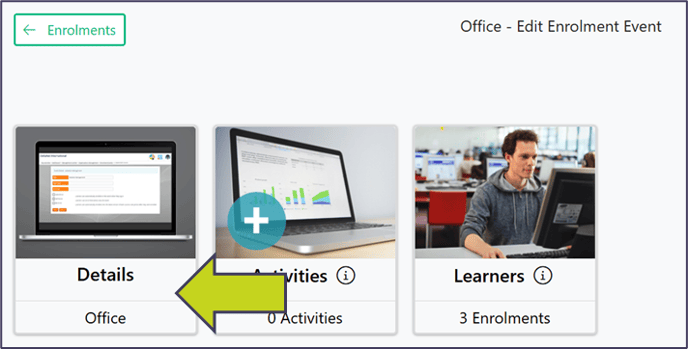
First, select 'Details'.
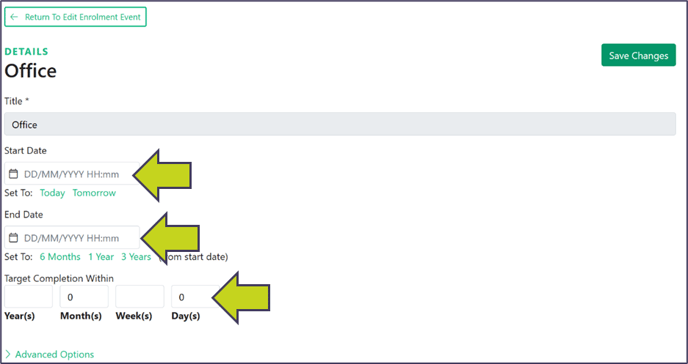
Here you have the options to pick a Start Date, and a Target Date.
- Start Date: when the training becomes available to employees.
- Target Date: the date that employees should complete their training by.
Note: These are optional, you can choose to leave these fields blank. If you do this the training will be available for users as soon as they open their E-Learning.
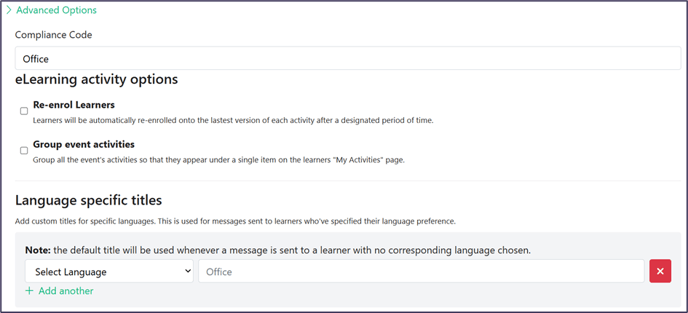
You will also see some ‘Advanced Options’:
- Reenrol Learners: Select this option to require users to retake courses after a specified period.
- Group Event Activities: Consolidate activities under a single icon on the employee’s E-Learning page, helpful for Enrolment Events with many courses.
- Language-specific titles can be updated for Enrolment Events when users access the E-Learning platform in another language. However, courses are not available in other languages.
Once you’re done with the 'Details' section, click ‘Save Changes’ in the upper right-hand side.
Activities
Next go to ‘Activities’.
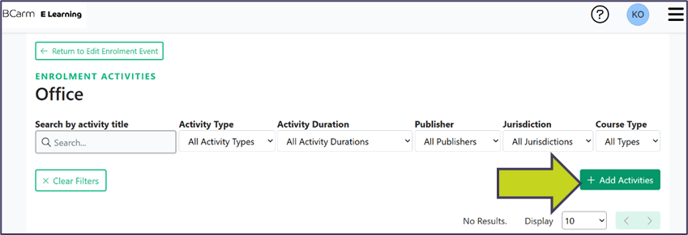
Click ‘Add Activities’ to browse your course library. Select the courses and self assessments you wish to add to the Enrolment Event.
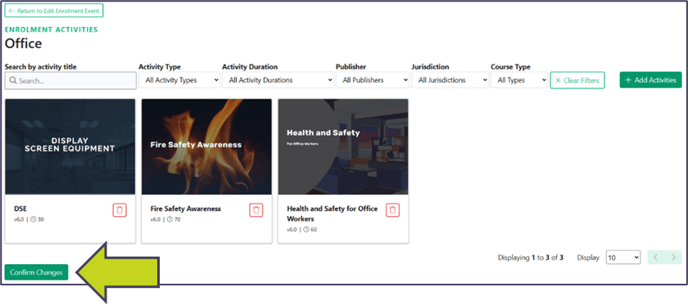
Click ‘Confirm Changes’ when you’re done.
Learners
You can then click ‘Learners’ if you want to review who is currently assigned to this Enrolment Event.
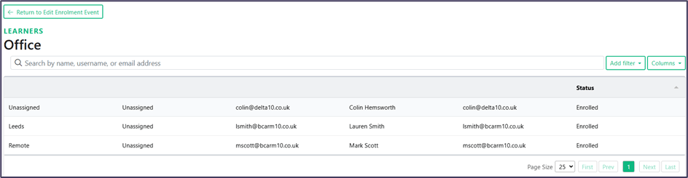
Note: you cannot change who is assigned to the Training Group from the E-Learning platform. Instead go to the BCarm landing page > ‘Employees’ and edit the employee’s profile. This will then update in E-Learning.
Re-Enrolment Activities
If you have selected ‘Re-enrol Learners’ on the ‘Details’ tab, there will then be an option to add ‘Re-enrolment Activities’.
Here you need to confirm what courses you want to see when the courses become due next training cycle.
Select ‘Re-enrolment Activities’.
The Activities currently on the Enrolment Event will be listed on the left.
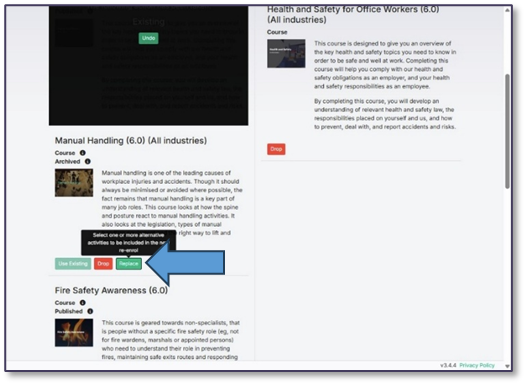
You have the option to ‘Use Existing’, ‘Drop’ or ‘Replace’ each course for the next training cycle.
If you want users to retake the same course, just select ‘Use Existing’, and the course will appear under ‘Next Activities on the right-hand side.
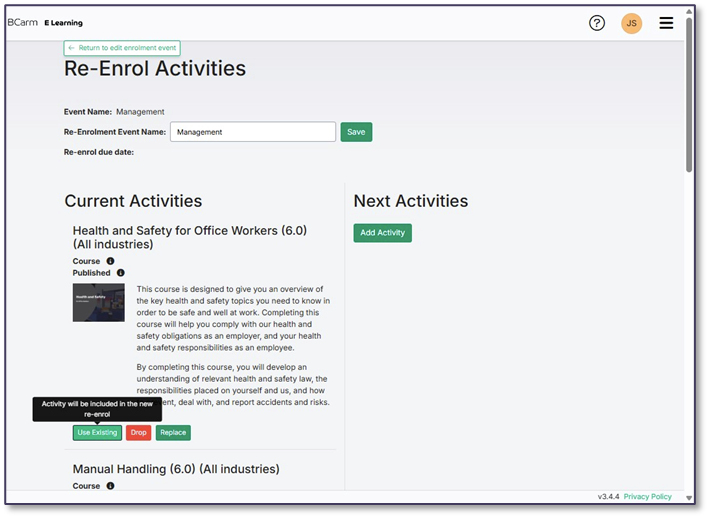
In some cases, the option to ‘Use Existing’ option will be greyed out.
This is because this course is being phased out for an upgraded version.
In these cases, just click ‘Replace’, and select the new version of the course.
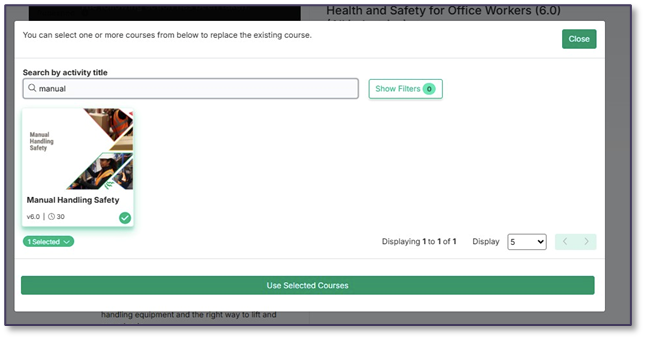
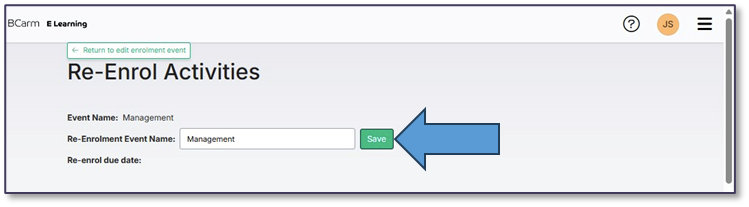
Once you have gone through all the Activities, click ‘Save’ at the top of the screen, then ‘Return to Edit Enrolment Event’.
Pending Changes
Finally, you may see a ‘Pending Changes’ option appear. When you edit an Enrolment Event, you always need to confirm any unsaved changes. If you won’t confirm the changes you have made then it will stay as a pending change.
Click on the ‘Pending Changes’ option and then ‘Action Changes’ to make the changes you have made live.