
Please see the below video guide, and step-by-step instructions below.
If you would like to add a large number of employees to the system at once (e.g. more than 15), contact the BCarm helpdesk at info@bcarm.co.uk who can assist you with a Bulk Upload).
Adding Employees - Quick Guide
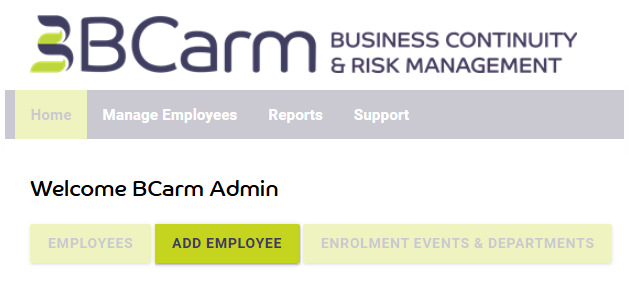
1. Log in to BCarm and select Add Employee.
2. Enter Employee Details
Mandatory fields are marked with *.
- Full Name*
- Email Address* (must be unique; use a dummy email if they don’t have an inbox)
- Direct Telephone (optional unless they are an Admin)
- Confirmation Method*: Email, or if you prefer SMS, or On‑screen Code.
- Enrolment Events: This determines what E-Learning courses they are enrolled on.
- Is Administrator: Tick if they need admin access
- Products & Services: Tick the areas of the system they should access
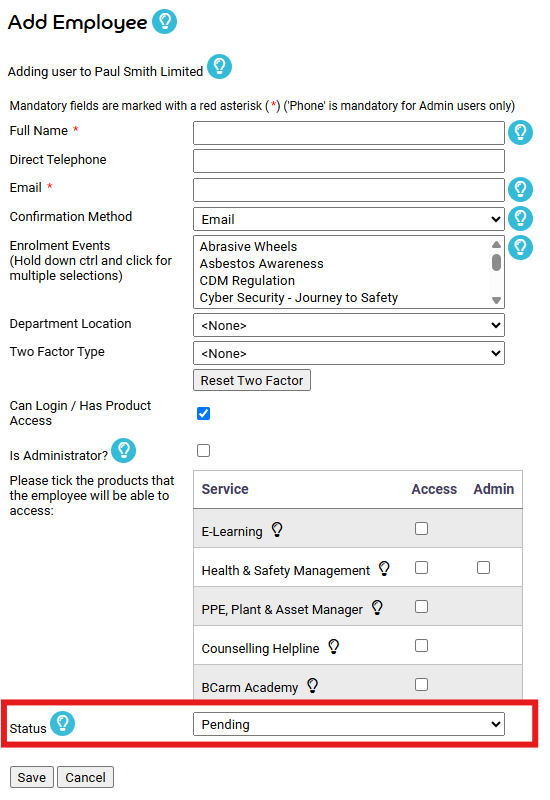
3. Make the Account Live .
Scroll to the bottom of the page, change Status from Pending to Live, then click Save.
4. Employee Confirms Their Account
Once saved, the employee receives a one‑time confirmation code via the chosen confirmation method.
This will be delivered by Email, SMS, or On Screen Code
They can then follow the link provided, set their password, and log in.
If you need help, contact info@bcarm.co.uk or call 0800 879 9981.
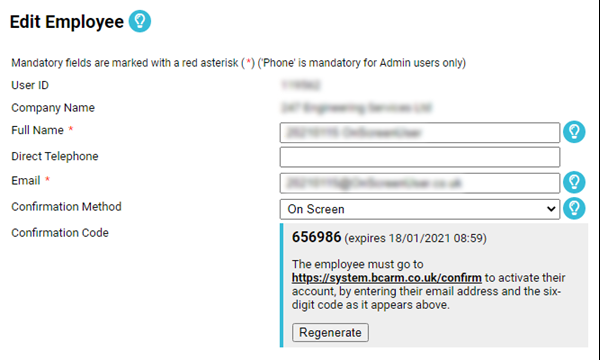
On-Screen Confirmation Method
If you add a user and set their Confirmation Method as On-Screen, follow the below steps:
- Select On‑screen as the Confirmation Method when adding the employee.
- After saving, go to Edit Employee to view their 6‑digit on‑screen code and the confirmation link.
- Give these details directly to the employee so they can log in.
- You can also find all on‑screen codes under Reports > On‑screen Codes.
If you need further assistance or clarification call us on 0800 879 9981 or email info@bcarm.co.uk and we will talk you through the whole set-up process.