
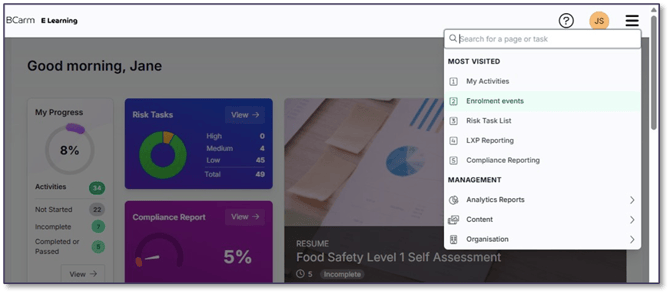
1. Go to the E-Learning menu and open ‘Enrolment Events’.
(If you can’t find it, it’s under Organisation > Enrolment Events).
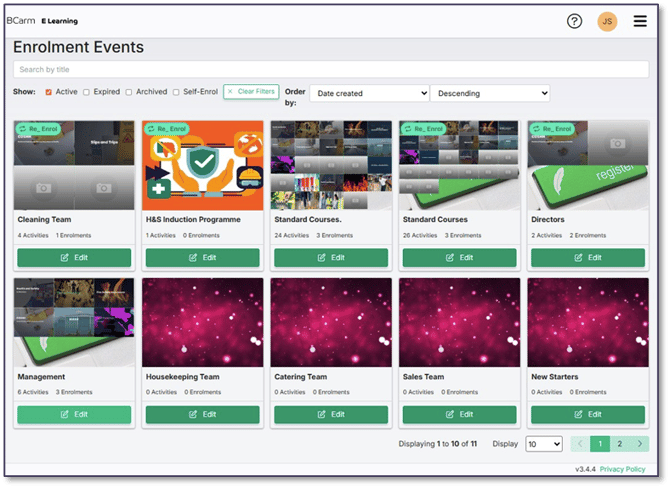
2. Click ‘Edit’ on an Enrolment Event.
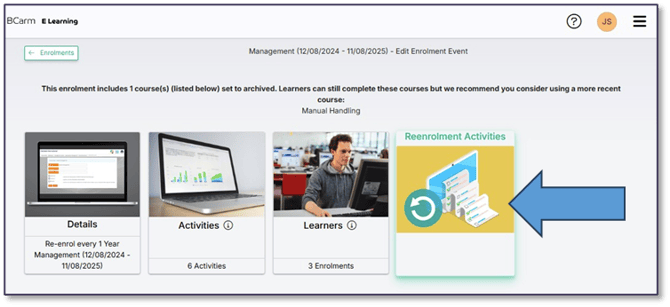
3. Click on the option to add ‘Re-enrolment Activities’.
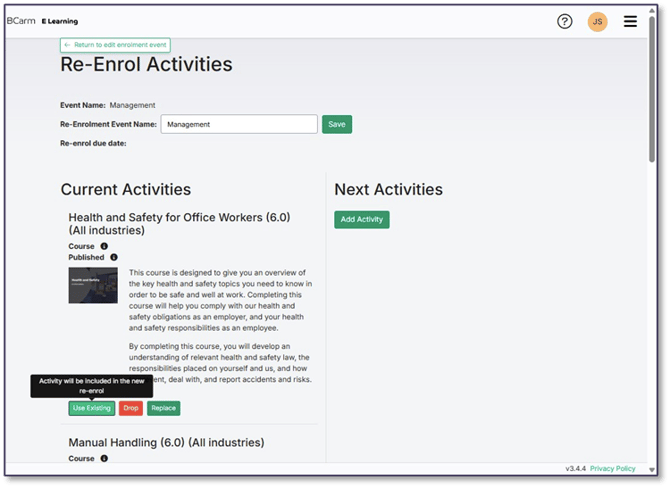
4. The Activities currently on the Enrolment Event will be listed on the left.
You have the option to ‘Use Existing’, ‘Drop’ or ‘Replace’ each course for the next training cycle.
In most cases, you can just select ‘Use Existing’, and the course will appear under ‘Next Activities on the right-hand side.
5. In some cases, like with the Manual Handling course, the ‘Use Existing’ option will be greyed out.
This is because this course is being phased out for an upgraded version.
In these cases you must click ‘Replace’, and select the new version of the course. 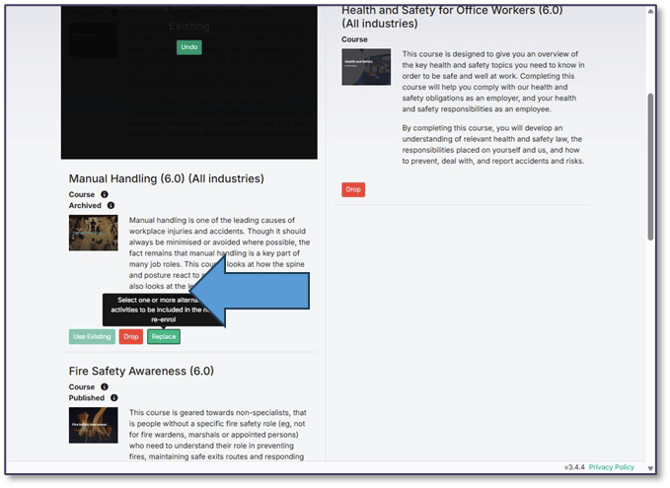
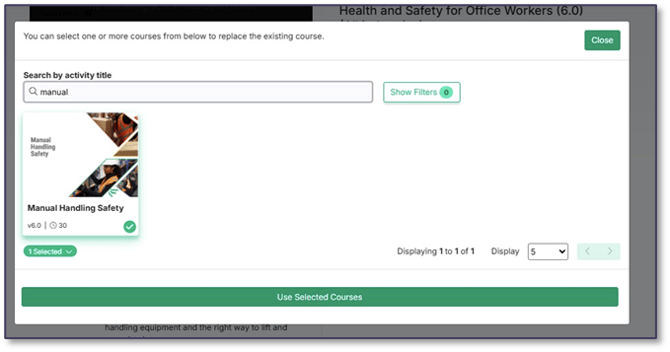
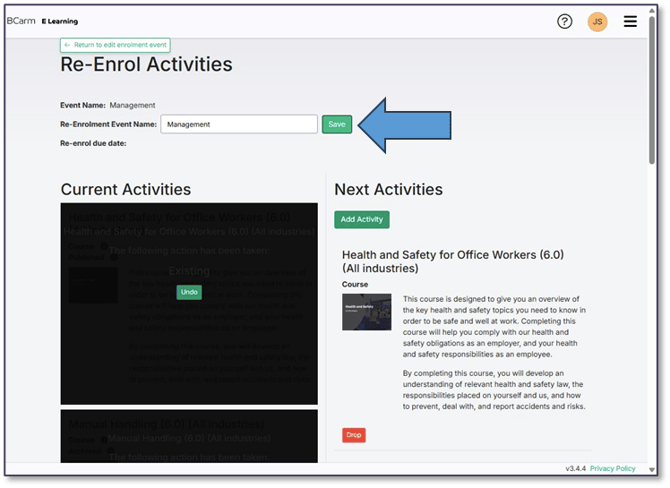
6. Once you have gone through all the Activities, click ‘Save’ at the top of the screen, then ‘Return to Edit Enrolment Event’.
If you need any assistance, please contact us at info@bcarm.co.uk
0800 879 99 81 or book a webinar if you would like any further guidance.